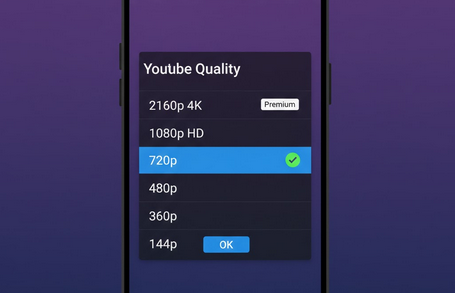
When selecting video quality, YouTube considers Internet speed, screen resolution of your device, and the need to save data. However, the problem is that the video becomes too poor since YouTube automatically adjusts video quality and you cannot view the video in the highest resolution on your device. That is why you need to set the default video quality.
Auto Quality Setting is Not Enough
YouTube quality adjustment algorithm works depending on the speed and does not consider the visual quality. For example, when you use the Wi-Fi connection, YouTube plays the video in 480p resolution and increases it. However, when using mobile data, YouTube limits the video quality up to 360p resolution and lower, regardless of the connection quality. Such presets do not let you enjoy videos in high quality.
Default Video Quality in Official YouTube App
The official YouTube app lets you change video quality preferences in such categories as “Higher Picture Quality,” “Data Saver,” and “Auto.” Unfortunately, you cannot set certain resolution and make it default. YouTube will adjust the video quality depending on its criteria every time you play video.
How to Set Default Video Quality with YouTube Vanced
YouTube Vanced allows you to change video quality preference according to your desires. The user can set certain resolution and make it default for Wi-Fi and mobile data connections separately. Thus, each video will be played in certain resolution.
To change video quality preference, you need to open YouTube Vanced Settings and then select Video Quality Preferences. Then, you need to select the desired resolution for each Internet connection category.
Recommended Video Quality Settings
- The selection of proper video quality settings depends on your device and screen size.
- 2160p (4K): The best choice for large screens and tablets with 4K resolution. High Wi-Fi speed is required.
- 1080p (Full HD): The best default video quality setting for almost all smartphones. Good visual quality and average data usage.
- 720p (HD): The best combination of visual quality and data usage. Suitable for small screens.
- 480p (SD): The best setting for people with limited data plans. Good visual quality and low data usage.
- 360p and lower: If the visual quality is not important for you and you need to listen to audio content like music videos or podcasts.
HDR and Frame Rate Settings
YouTube Vanced allows you to watch videos in HDR format with maximum brightness. Such videos have high visual quality since they have metadata about it. Moreover, the user can ensure that 60fps video quality will be selected automatically in all videos. Thus, improved motion quality is ensured for gaming content, sport videos, and other fast videos.
For using all YouTube account features, you should install Vanced MicroG for Google account authentication.
Data Usage
- 1080p Video Streaming: 1.5 – 3 GB/hour.
- 720p Video Streaming: 0.7 – 1.5 GB/hour.
- 480p Video Streaming: 0.3 – 0.7 GB/hour.
Audio-Only Content: If you set lower video quality for music videos, you can reduce the data usage without reducing your listening experience.
Who Needs to Set Up His/Her Video Quality Settings
- Quality-Oriented Viewers: People who like sharp visual quality in all videos without any adjustments.
- People Trying to Save Data: All the people with limited mobile data and predictable data usage.
- HDR Content Viewers: People with HDR support on their devices who like watching videos in the best visual quality.
- Regular YouTube Users: People who are not satisfied with YouTube’s quality adjustment system.
Conclusion
Adjustment of your video quality settings can greatly improve your YouTube experience. Instead of letting YouTube to adjust the video quality, you can do it yourself with YouTube Vanced. You need to set your resolution once and enjoy sharp video every time.